What's New
Content Management System
For a while now, osTicket has allowed you, the user, to create custom pages, but we’ve only ever been able to edit text and images.
You, the user, asked for a more flexible page builder and useful widgets for these sections. You begged us to improve Branding and add more UI customization on the user portal and over the years, we listened.
Feature Sections on the CMS
Pages
We’ve built a layout engine directly into the core of osTicket. Instead of being stuck with fixed templates, you now have a canvas. It’s a responsive page builder that behaves like a design tool, giving you the floor to structure content exactly how your team needs it.
To handle the heavy lifting, we’ve introduced customizable widgets. Instead of fighting with code to build standard site elements, you can now drop in the components you need with significantly less effort. Even the portal footer has been overhauled to follow modern web conventions—giving you a dedicated space for navigation and branding that stays consistent across your entire site.
Since a blank canvas can be a bit daunting, we’re also shipping a library of pre-built templates to get you moving immediately.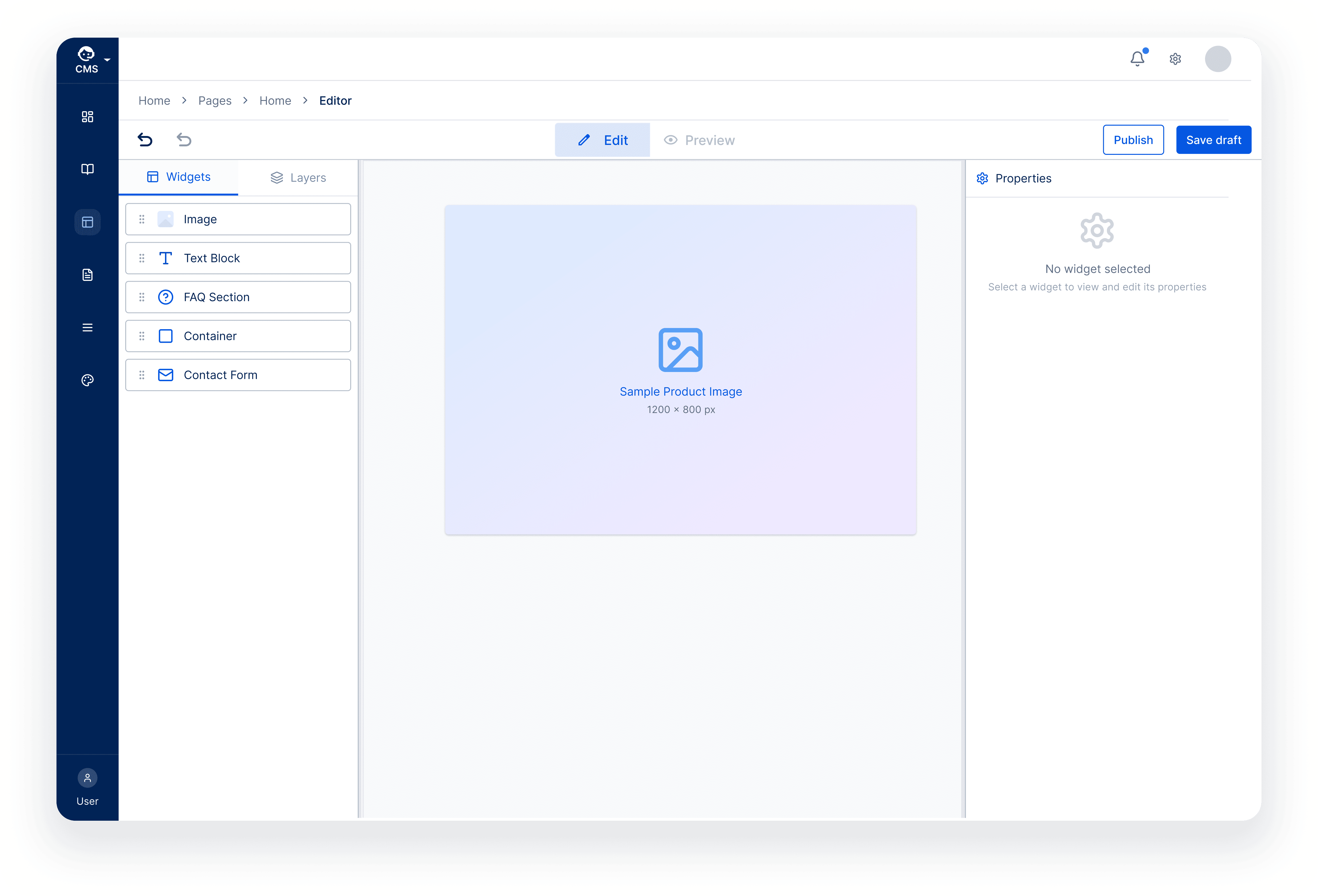
Knowledge Base & Articles
We’ve overhauled the way you create and organize documentation. Your team can now build a structured knowledge base where users can self-serve and find deep-dives on features or troubleshooting steps.
To keep things manageable as your library grows, we’ve added a tagging system for smarter filtering and grouping. It’s about more than just "text on a page"—it’s about giving your users the right information at the right time, directly within your help desk environment.
FAQs
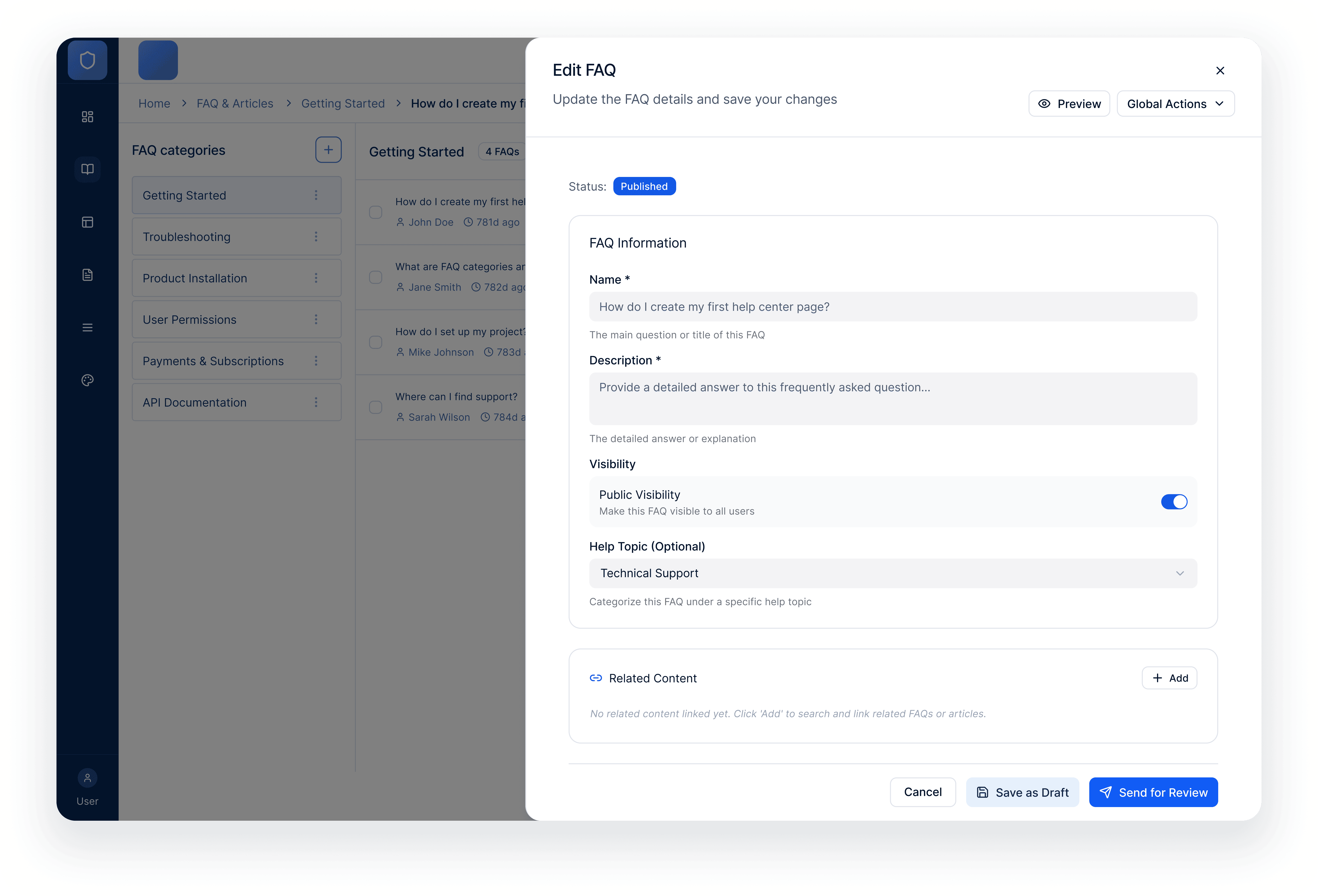
We’ve made Frequently Asked Questions more robust. By pairing FAQs with Articles, your help center becomes much more than a list of links. Teams can build FAQs based on common customer inquiries and group them into categories to make searching intuitive. Additionally, FAQs can now link directly to related articles, allowing users to dive deeper into a topic without having to search from scratch.
Branding
We’ve introduced more granular controls for your brand identity. You can now define different logos for light and dark schemes to maintain the right contrast on your user’s device. And yes, you can now change the favicon on your website.
The Content Hub
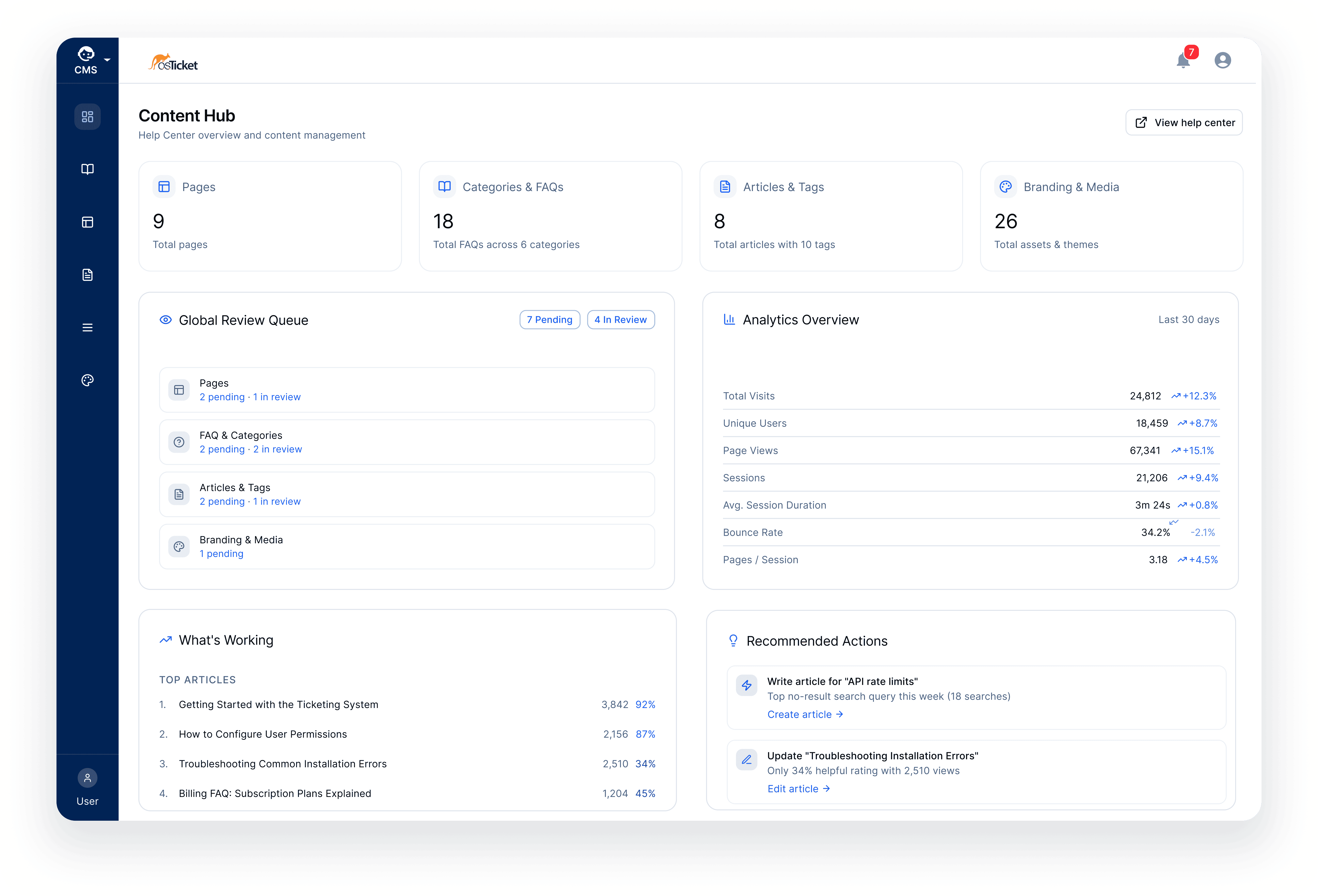
The Content Hub provides a centralized overview of the entire help desk ecosystem. Rather than an editing suite, it serves as a high-level dashboard where all content—from articles to branding assets—can be monitored in one place. Integrated analytics offer immediate insight into how content is performing, while direct redirects allow for quick navigation to specific sections when updates are required. It’s designed to eliminate fragmentation, giving you a clear window into the health and reach of your help center.
What this Means for Your User Portal
The content management system enables you to create a robust and customized help centre to match your brand and business need.
Relations
The CMS is closely connected to several other areas of the platform.
For example:
The Knowledge Base integrates with FAQs to provide layered documentation.
CMS pages directly shape the User Portal experience.
Content performance analytics within the Content Hub can inform support workflows and ticket deflection strategies.
These relationships allow content, support operations, and user experience to work together within a single system.
Why This Matters
The new CMS transforms the help desk into a self-service support platform.
By giving teams full control over content and branding, organizations can:
Reduce ticket volume through self-service resources
Provide clearer documentation for users
Maintain consistent branding across the portal
Turn their help desk into a dedicated support website
The result is a more powerful help center that supports both customers and support teams.
Theming & Branding
It’s a long time coming for the osTicket community; the interface has remained largely unchanged for over a decade. That changes with osTicket 2.0.
Here’s what you should expect:
Colorscheme generation from a single base color will make adjust your workspace to your personal preferences
Adjustable contrast make osticket more accessible to visual impairment or just your personal preference.
Dark mode, you heard me right. Using osTicket in a low light environment won’t make you feel like a vampire anymore.
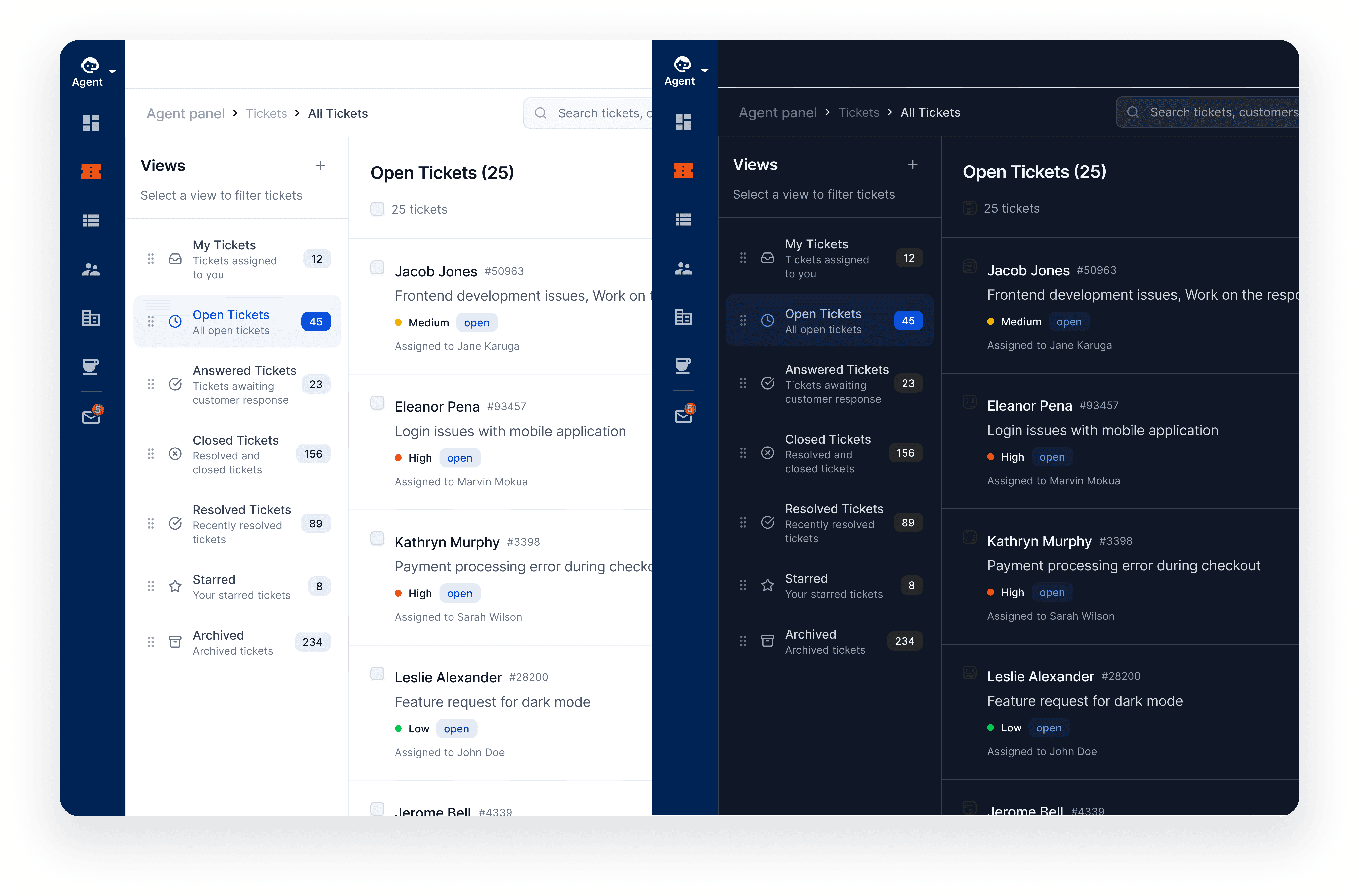 Theme settings can be configured at multiple levels:
System / Workspace level – define default appearance for your helpdesk.
Agent preferences – allow individual agents to customize their working environment.
User portal branding – ensure customer-facing pages match your organization’s brand.
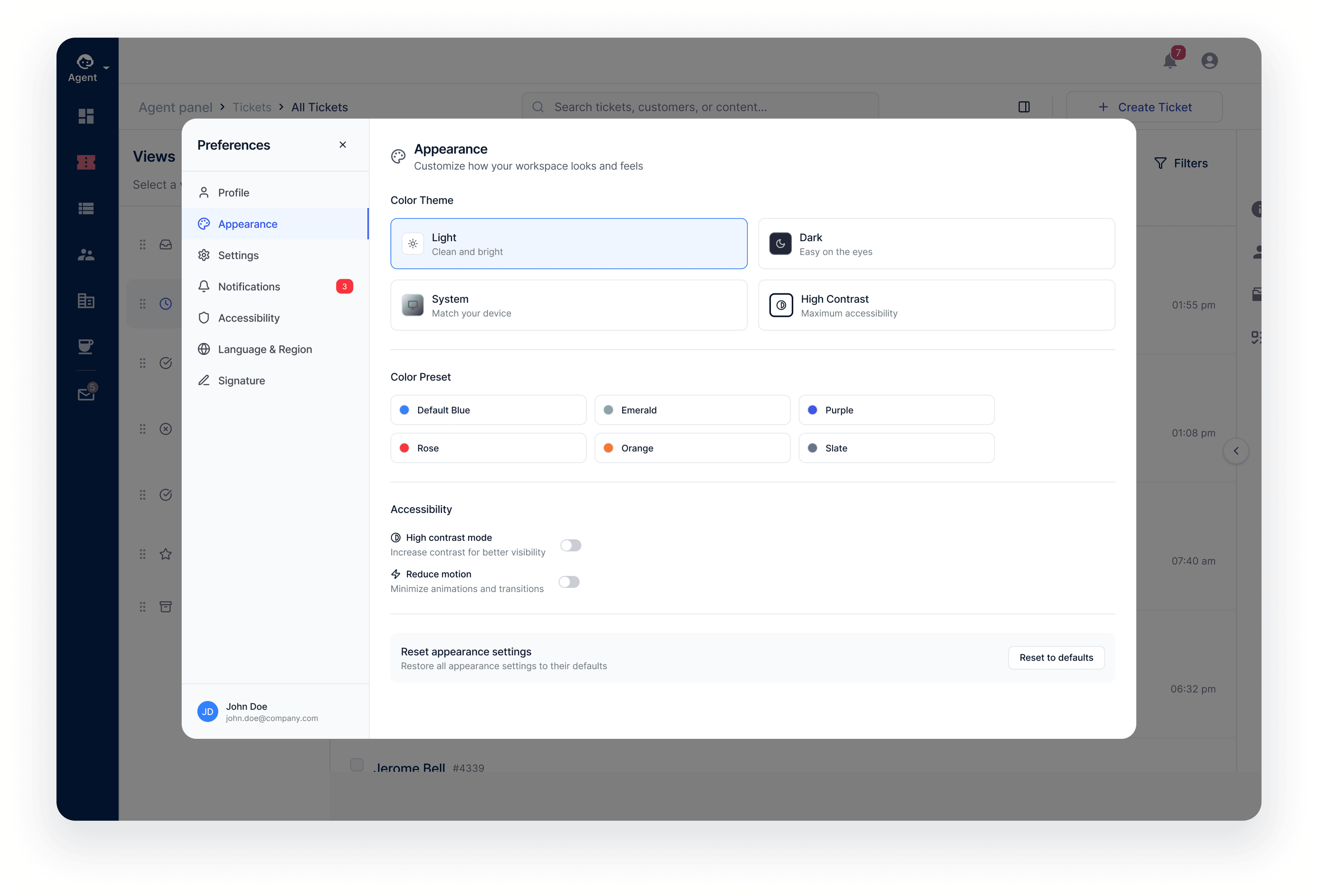 This shift eliminates the reliance on fragile third-party hacks and brings osTicket into the modern era of web accessibility.
Modernized Ticket Workspace
The Ticket Page Has Always Been the Core of osTicket
The ticket page is the heart of osTicket. It’s literally in the name.
For years, features like auto-routing, ticket locking, and threaded conversations have made osTicket a powerful platform for managing support requests. Agents spend most of their time here reading messages, responding to customers, and collaborating with teammates.
However, as teams grew and workflows became more complex, the ticket interface began to show its age. Navigating between tickets quickly was difficult, key tools like canned responses felt hidden, and the layout was not designed for modern mobile devices.
These limitations made a powerful system feel slower than it should.
Moving From a Static Ticket View to a Flexible Workspace
In previous versions of osTicket, the ticket page functioned mostly as a single, static layout. While it contained everything needed to manage a ticket, the structure made it difficult to scan information quickly or move between related tickets.
The new ticket interface evolves that concept into a workspace designed for speed and clarity. Navigation is persistent, key ticket information is easier to access, and the entire layout adapts to different screen sizes.
The goal is simple: less time navigating, more time solving tickets.
Introducing the Redesigned Ticket Interface
The redesigned ticket page introduces a mobile-responsive layout and improved navigation structure that makes it easier to manage tickets from any device.
Alongside the new layout, the response editor and ticket creation flow have been modernized to make common tasks faster and clearer.
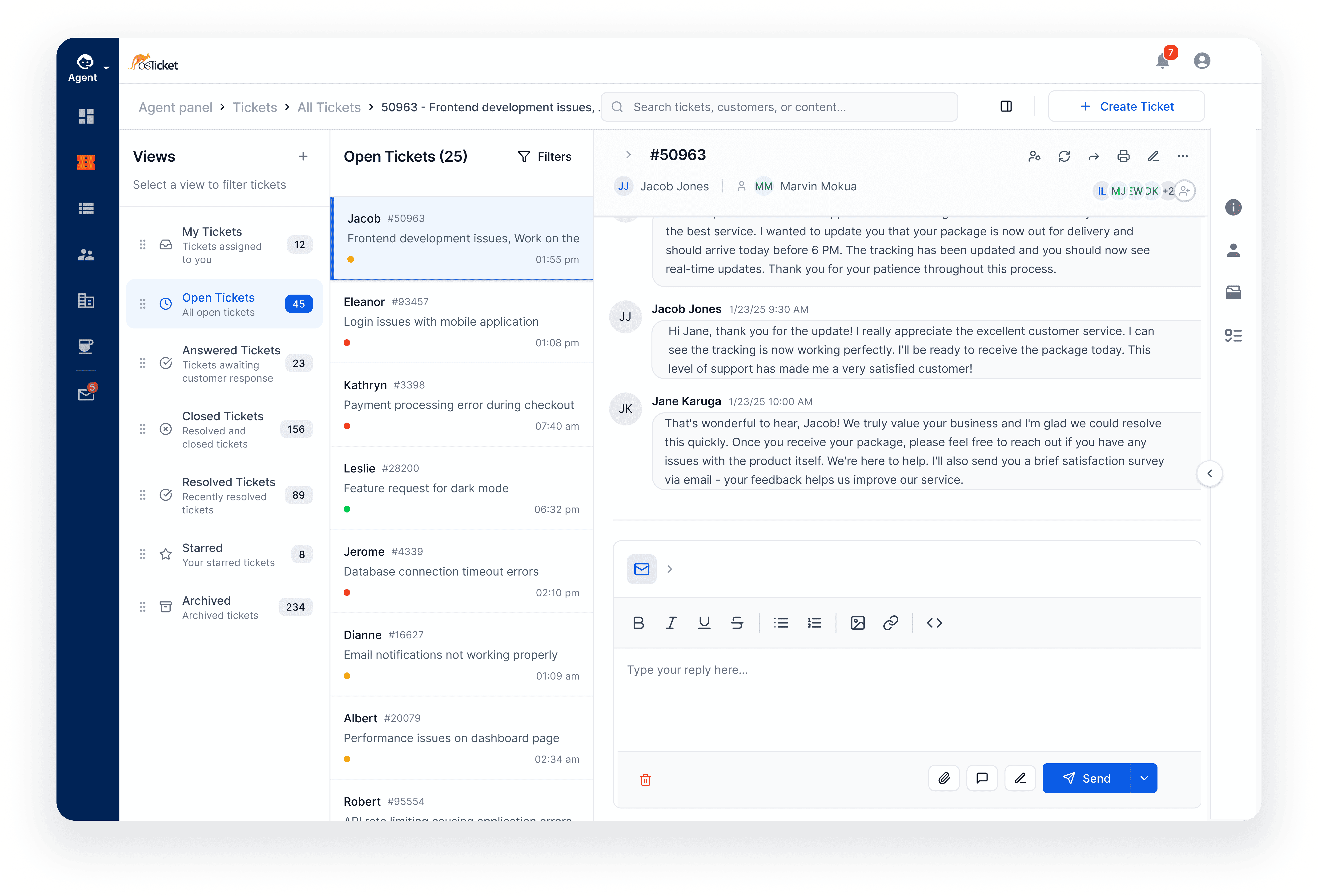
This redesign focuses on three major areas:
Navigation and ticket visibility
Response and reply tools
Ticket creation workflows
A Ticket Workspace Built for Speed
The new ticket interface organizes information into a structured workspace that keeps the most important tools always visible.
Messages within the thread can now also be collapsed, similar to Gmail, allowing agents to quickly skim long conversations without losing context.
The interface also adapts to mobile and tablet screens, making it far easier to manage tickets on smaller devices.
Expanded Ticket Information Panels
Important ticket data is now easier to access, including:
Detailed ticket information
Detailed user information
Collaborators on the ticket
Related tasks
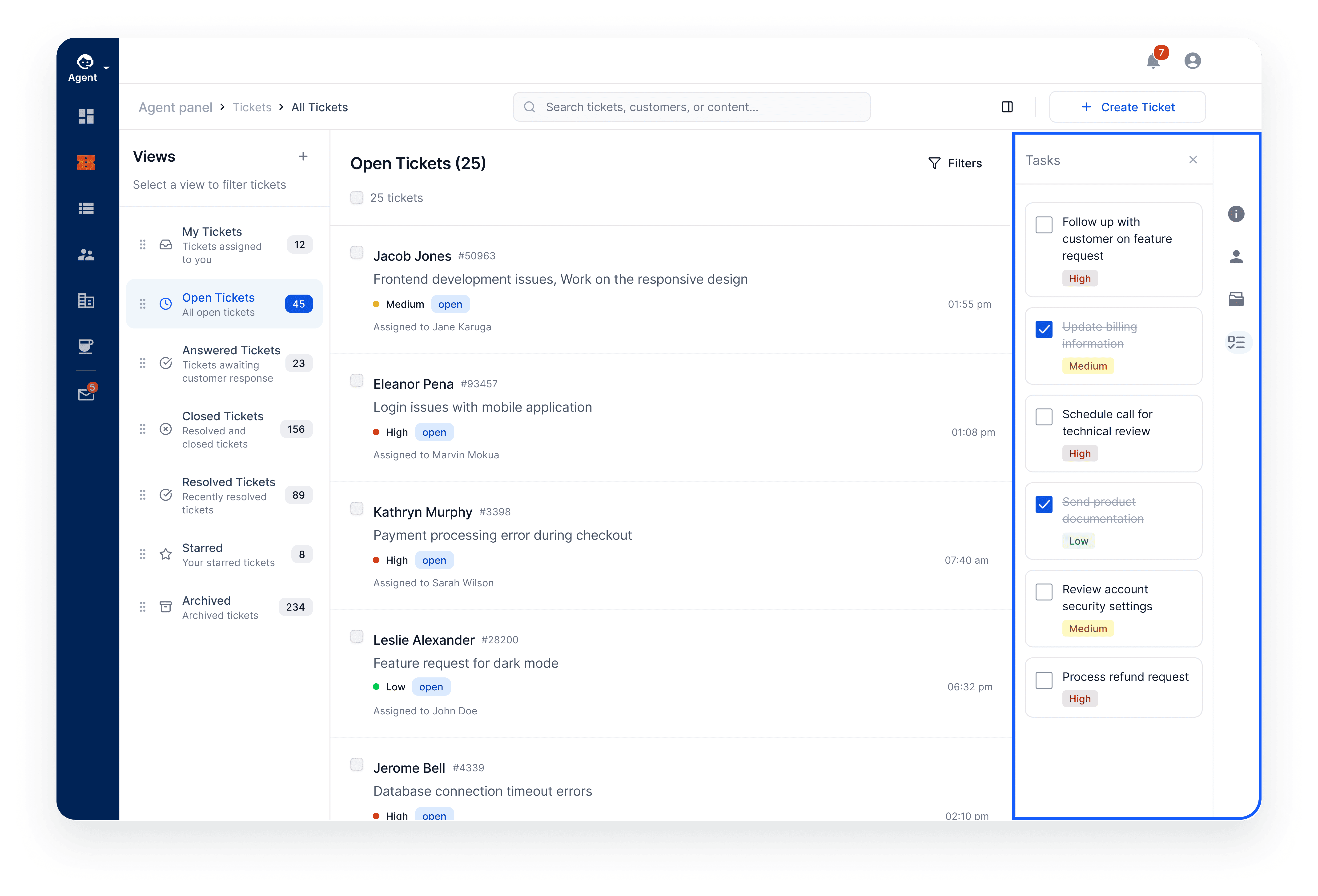
These elements are organized so agents can access context without leaving the ticket.
Collapsible Ticket Threads
Long ticket conversations can now be collapsed and expanded, allowing agents to skim discussions faster and focus on the most recent updates.
Improved Reply Editor
Responding to tickets is now clearer and more efficient with improvements such as:
Easier management of canned responses
Signature previews before sending replies
A cleaner and more focused reply interface
Multi-Step Ticket Creation
Creating tickets now follows a multi-step workflow, guiding agents through the process and reducing errors when entering information.
How the Ticket Workspace Connects to Other Features
The redesigned ticket interface works closely with several other areas of the platform:
Canned Responses for faster replies
Tasks for tracking work related to a ticket
User Profiles for viewing customer information
Ticket Views for filtering and organizing ticket lists
These components integrate directly into the ticket workspace, reducing the need to navigate away from the ticket being handled.
Example Workflows
Quickly Reviewing a Long Ticket Conversation
An agent opens a ticket with a long history of messages. By collapsing earlier thread entries, they can focus on the most recent responses and resolve the issue faster.
Switching Between Multiple Tickets
Using the static ticket list, an agent can quickly move between tickets without leaving the ticket workspace.
Sending Consistent Replies
While responding to a ticket, the agent selects a canned response and previews their signature before sending the reply.
Why This Redesign Matters
The ticket page is the most frequently used part of osTicket. Improving it directly improves the daily workflow of every agent.
The new interface delivers:
Faster navigation between tickets
Better visibility of ticket information
Improved response tools
Mobile-friendly usability
Issues & System Status
From Reactive Support to Shared Visibility
Traditionally, support systems revolve around tickets.
A customer encounters a problem, submits a ticket, and an agent investigates. While effective, this model can leave customers and agents unaware that a problem is already known, actively being investigated, or affecting many users.
As systems grow more complex, organizations need a way to communicate known problems clearly and proactively.
osTicket 2.0 introduces a new capability designed to do exactly that.
We explore the thinking behind this approach in our blog post Why Status Pages Belong in the Help Desk.
A New System Capability
Introducing Issues and the Status Page, a new capability for communicating system health and incidents in real time.
This feature provides a centralized way to track and communicate known problems affecting systems or services.
Users can view system health, monitor active issues, explore past incidents, and subscribe to updates.
This capability includes three pages:
Status Page - a real-time overview of system health and active issues
Status History - a searchable history of past issues
Issue View - a detailed page for a specific issue
Together, they provide a transparent and centralized view of system health.
Introducing Issues
At the center of this feature is a new addition to the support workflow: Issues.
Issues complement tickets and tasks by tracking shared problems that may affect many users at once, with a timeline of updates to communicate investigation progress and resolution.
Issue Status and Severity
Issues move through stages that describe their lifecycle:
Investigating
In Progress
Monitoring
Completed / Resolved
Each stage is displayed with a visual badge so users can quickly understand the current state of an incident.
Issues also include severity levels ranging from informational events to critical outages, helping teams communicate the scale and impact of a problem.
The Status Page
The Status Page serves as the landing page for system health.
Rather than a single list, the page is composed of widgets that surface key information at a glance.
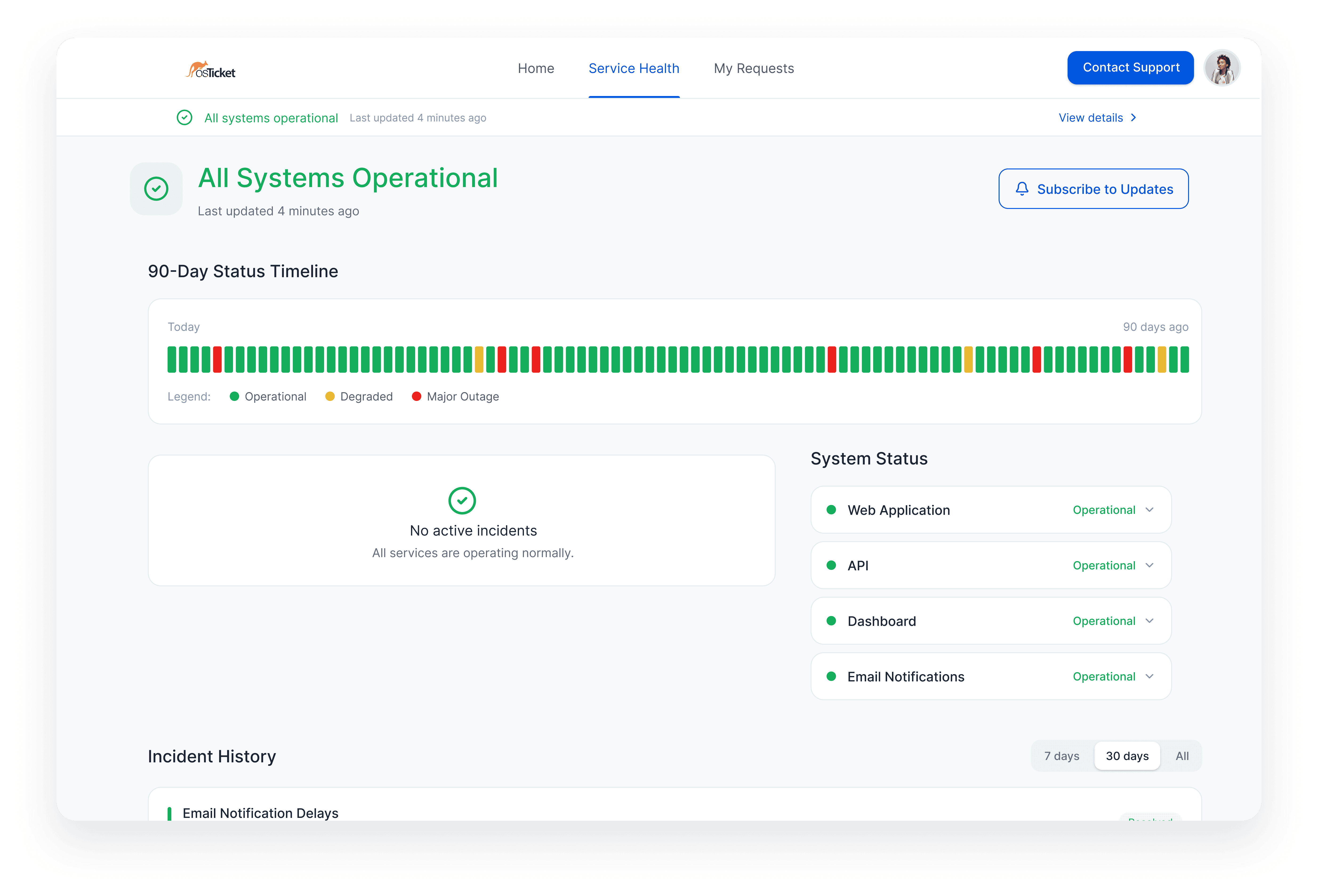
At launch, the page includes:
Status Bar
A visual timeline showing recent incidents and system health over time.

System Status
Displays the operational state of key services such as email fetching, alerts, APIs, and other administrator-defined systems.
Active Issues
Lists currently active incidents with their latest update and stage.
Recent Issues
Shows recently updated or resolved issues with a link to the full history.
Administrators can reorder widgets through the CMS panel to customize how status information is presented.
Status History
The Status History page provides a complete record of past issues.
Users can browse incidents, filter and sort results, and explore historical data grouped by month by default.
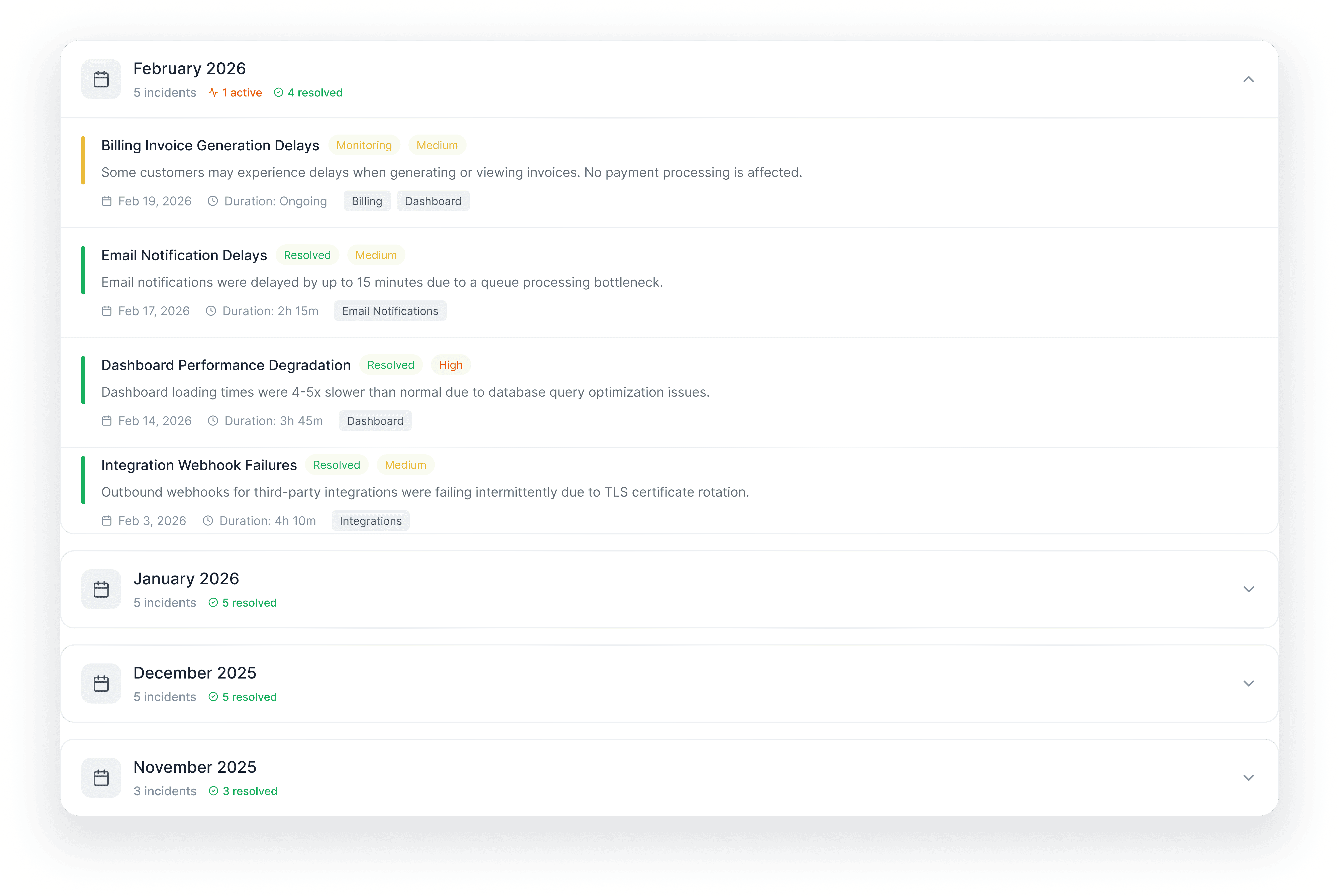 From this page, users can also subscribe to updates for all future issues.
Issue View
Selecting an issue opens the Issue View page, which provides full context for the incident.
This page includes:
issue details and description
a timeline of updates
affected systems
subscription controls
Updates appear as a chronological thread, allowing users to follow investigation progress and resolution updates.
Public and Internal Updates
Issues support both public updates and internal entries.
Public updates communicate investigation progress, service impact, workarounds, and resolutions.
Internal entries are visible only to agents and administrators, allowing teams to coordinate investigations without exposing internal details publicly.
Subscriptions
Users can subscribe to all issues or individual issues.
Subscribers receive email notifications when updates are posted or when an issue status changes.
Product Impact
Issues introduce a new layer of transparency to osTicket.
Customers gain visibility into system health, active incidents, and resolution progress.
Support teams gain a structured way to communicate incidents and provide updates that help reduce duplicate tickets and improve user awareness.
This feature represents an important step in the evolution of osTicket. It expands the platform beyond ticket management into proactive service communication.
View Builder
From Queues to Views
One of the defining ideas in early osTicket was Queues.
Queues grouped tickets by criteria and Departmental Access Control (ACL) into tabular views like Open, Overdue, or Assigned to Me Tickets. They helped agents focus on the work that mattered.
In osTicket 2.0, that idea evolves into something much broader.
A System-Wide Capability
Introducing the View Builder.
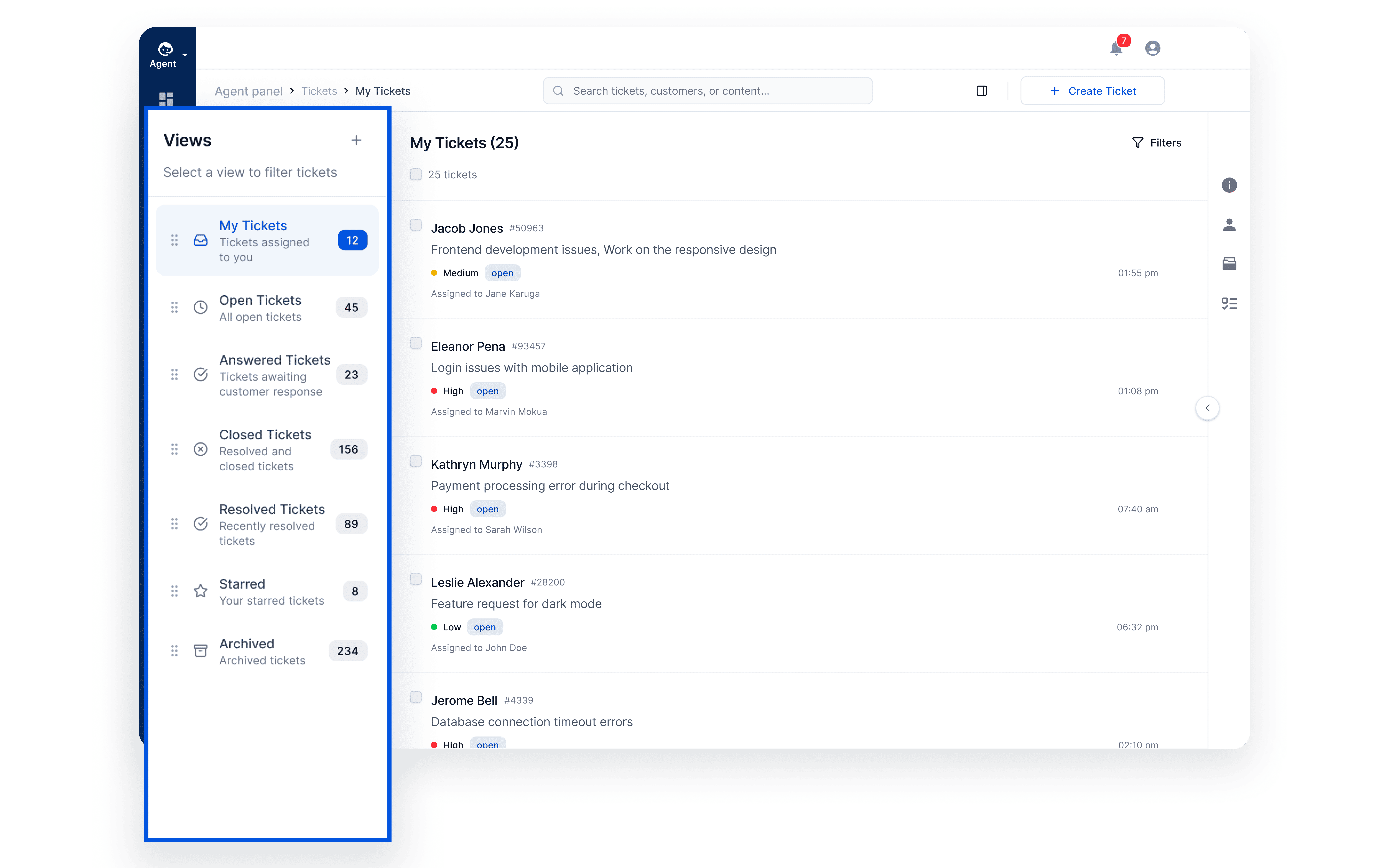
Views are no longer limited to tickets queues. In osTicket 2.0, views can be applied across the system; tickets, tasks, users, agents, organizations, and more.
The same concept that once powered ticket queues now becomes a core capability across the platform.
Defining How Data Appears
A View defines how records are queried and displayed.
Views can control:
filtering criteria
access control
sorting and pagination
visible columns
annotations
available actions
Views can also be rendered in different layouts, including tabular (table) views for dense datasets and card-based views for richer record summaries.
Customizable Views
Views are fully customizable.
Teams can define which columns appear, how records are sorted, and what criteria determines which records are included.
For example, a team might create views like:
Tickets waiting on customer response
Escalations older than 24 hours
Unassigned VIP tickets
Each view becomes a reusable definition that helps teams focus on a specific slice of work.
A Foundation for the System
Queues helped organize tickets.
With View Builder, the same concept now applies across the entire system.
What Changed
Dashboard Capabilities
From Ticket Counters to Operational Insights
Historically, the osTicket dashboard has been intentionally simple, focusing mainly on ticket volume tracking. It provided a quick overview of incoming and open tickets but offered limited insight into overall support performance.
As support teams grew, ticket counts alone were no longer enough. Teams needed clear performance indicators, service quality metrics, and flexible reporting views to understand how their support operations were actually performing.
A New Dashboard Experience
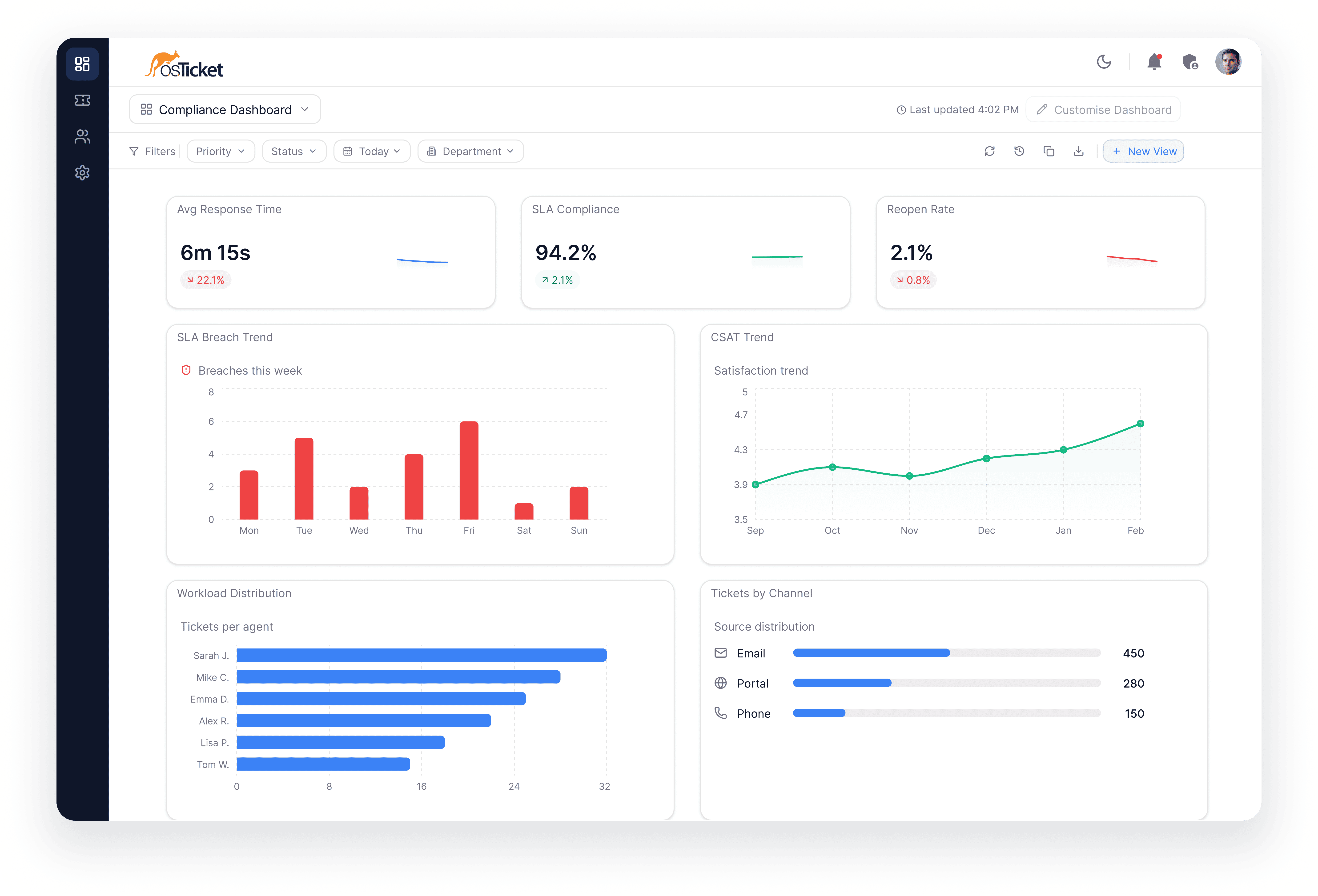
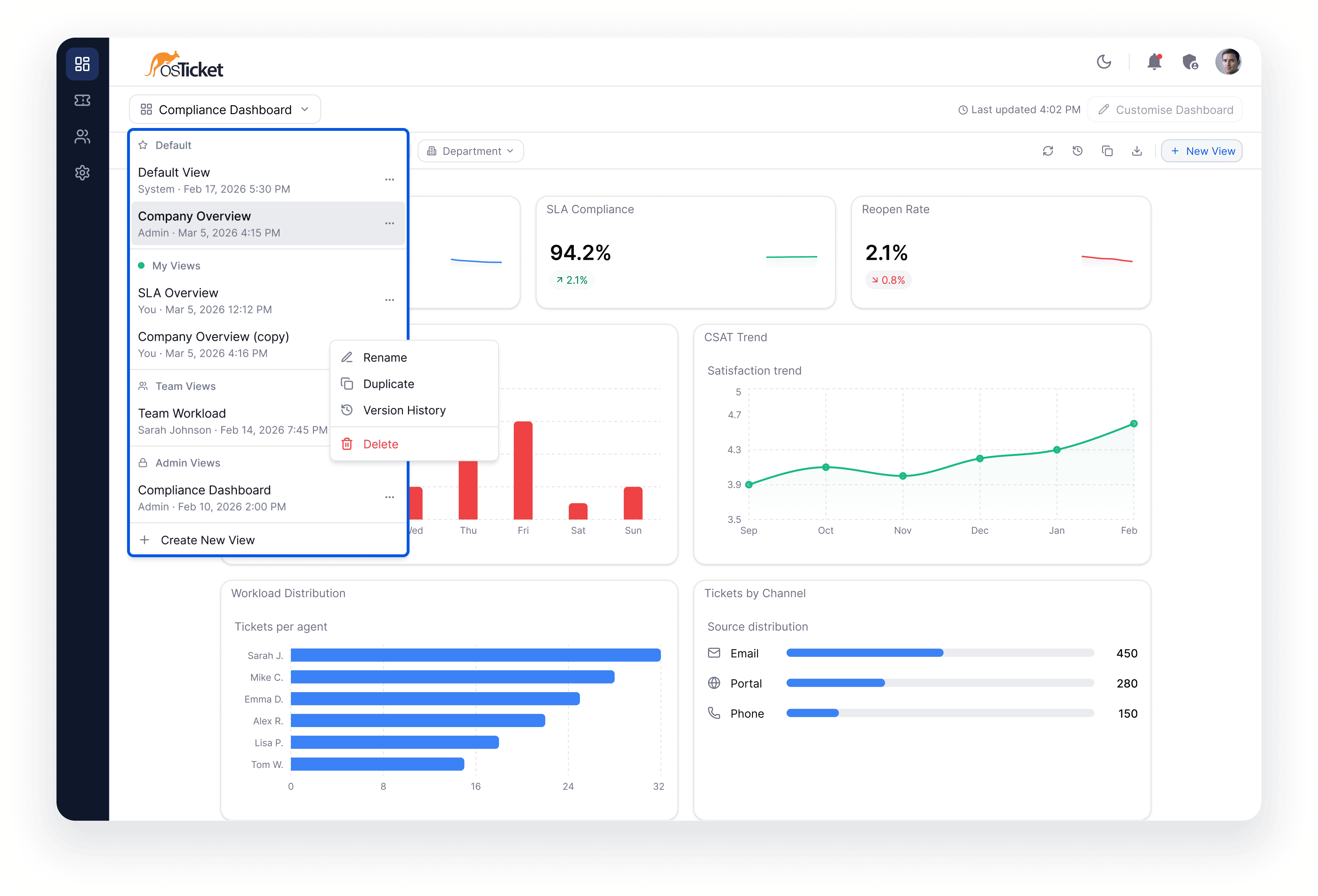
The Workspace Dashboard introduces a customizable analytics environment where teams can monitor operational health through configurable metrics and flexible layouts. Instead of a fixed dashboard, users now have a workspace built from modular widgets that can be arranged to fit their workflow.
Key Metrics at a Glance
The new dashboard expands the data available to teams, including:
Ticket volume segmented by status
SLA compliance
CSAT score
Granular agent performance
These metrics provide deeper visibility into both workload and service quality.
Flexible Views for Teams and Managers
Dashboards can be filtered to analyze data from different operational perspectives:
Team
Department
Individual agent
Time range
This allows managers to review department performance while agents can focus on their own activity.
Drag-and-Drop Dashboard Layout
Dashboards are built with a widget-based layout system. Using a simple drag-and-drop interface, users can:
Add or remove widgets
Move widgets around the workspace
Resize widgets to prioritize important data
This makes it easy to tailor dashboards for different roles.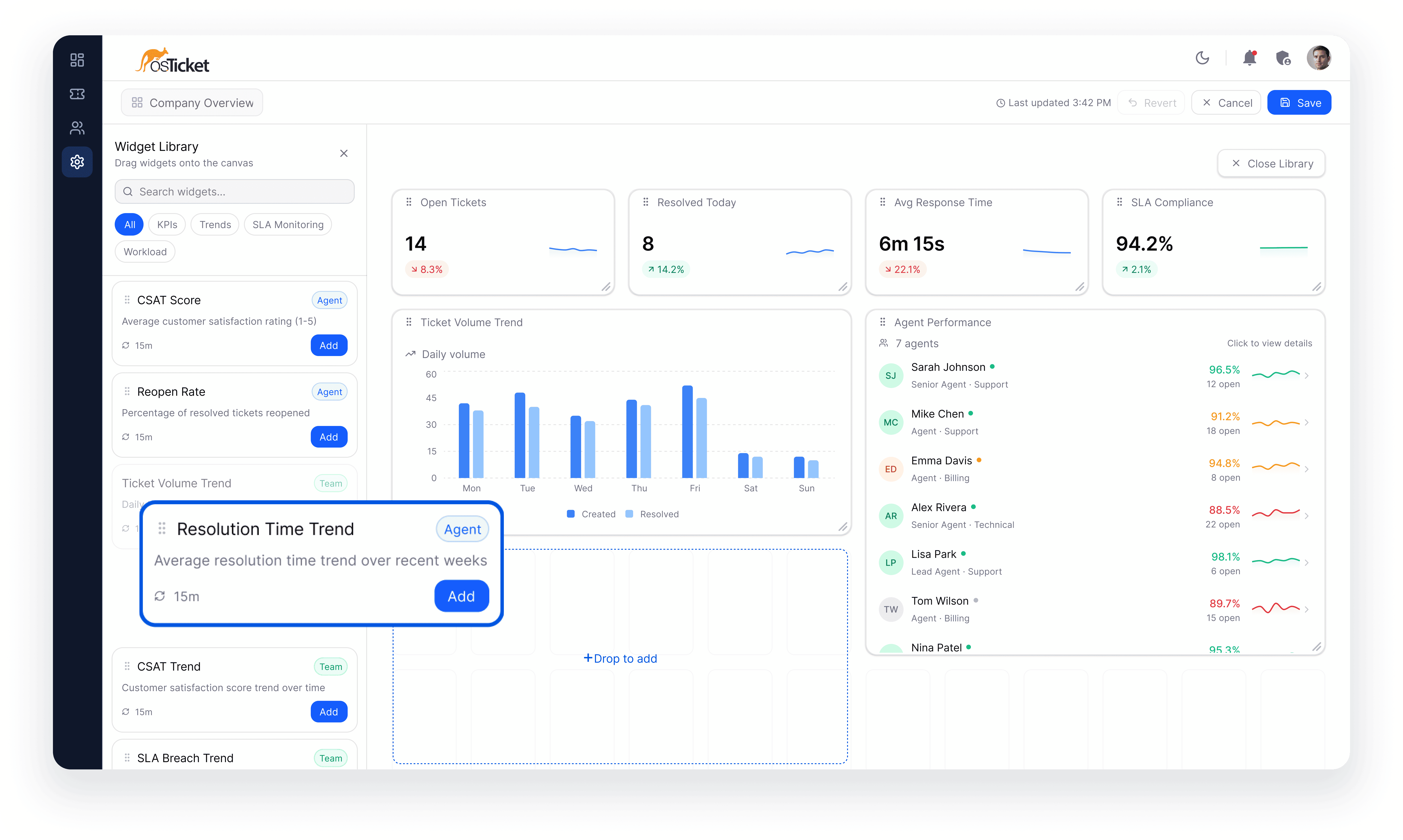
Safe Dashboard Customization
Dashboards can be customized and shared without disrupting other users thanks to built-in version controls:
Branching / Cloning to create variations of a dashboard
Rollback to restore previous versions if changes need to be undone
This allows teams to experiment with layouts while keeping stable versions available.
How Dashboards Fit into the Platform
Workspace dashboards integrate with other osTicket systems such as:
Agent workspaces
Departments and teams
SLA policies
These connections allow dashboards to surface operational data across the entire support environment.
Why This Matters
The new dashboard transforms osTicket from a basic ticket counter into a real-time operations view. Teams gain better visibility into workload distribution, service quality, and agent performance—all within a dashboard they can fully customize.
Platform Architecture
From a Monolithic Web App to a Modern Platform Foundation
Historically, osTicket evolved as a traditional web application where backend logic and the user interface were closely intertwined. This approach worked remarkably well for many years and allowed the project to grow steadily alongside the needs of support teams around the world.
But as the platform expanded, it became increasingly difficult to evolve the system without touching multiple layers of the application at once.
Over time, it became clear that the real limitation wasn’t features; it was the foundation underneath them.
A New Architectural Foundation
osTicket 2.0 introduces a new platform architecture that separates the core system capabilities from the interfaces that present them.
The backend now focuses on the domain of the system — data models, workflows, permissions, and APIs — while the frontend focuses on how those capabilities are rendered and interacted with.
This separation allows the platform to evolve much more easily over time, enabling new interfaces, integrations, and automation without constantly reshaping the core of the application.
Built for the Next Generation of Support Systems
The new architecture provides several long-term improvements:
Clear separation between platform and interface
API-driven capabilities for integrations and automation
Composable UI components and modular features
Greater flexibility for future interfaces such as mobile and AI-driven workflows
While much of this change happens behind the scenes, it creates the foundation that allows osTicket to grow far beyond what the previous architecture could support.
Learn more about the architecture in depth: Inside osTicket 2.0: A Bird’s-Eye View of the Architecture
Custom Forms
From the beginning, osTicket allowed teams to collect more than just a subject and message when a ticket was created.
Custom Forms and Fields allow administrators to define additional fields that capture structured information such as order numbers, asset IDs, phone numbers, or other details specific to an organization’s workflow.
These fields can be attached to ticket forms, allowing teams to tailor the information collected during ticket creation and throughout the ticket lifecycle.
By extending the default ticket fields, Custom Forms help teams adapt osTicket to the specific data their support processes require.
What a Custom Form Defines
Custom Forms determine what additional information can be captured for a ticket.
Forms are typically attached through Help Topics, allowing different types of requests to collect different information automatically when a ticket is created.
Multiple forms can also be associated with a single ticket, allowing teams to gather additional details as work progresses.
For example, a ticket might include one form for customer details, another for hardware information, and another for escalation or approval data.
Form Design Improvements
Custom Forms in osTicket 2.0 introduce several improvements that make forms easier to design, manage, and adapt to different workflows.
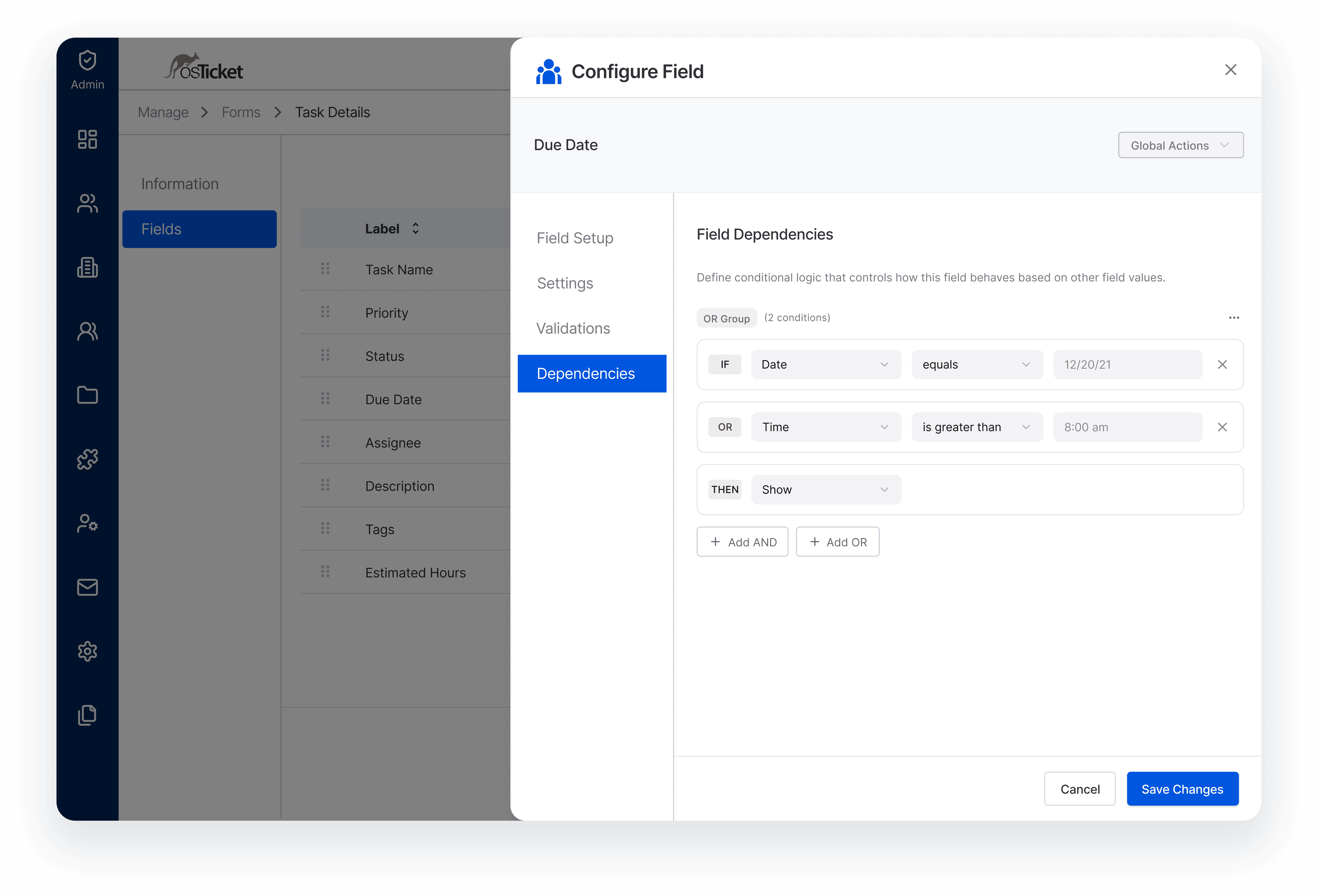
Conditional Field Logic
Fields can appear dynamically based on responses to other fields. For example, selecting a specific option in one field can reveal additional fields that are only relevant under certain conditions.
Expanded Field Types
Several commonly used field types now have dedicated configurations. Instead of relying on generic text fields with validation rules, administrators can define specialized fields such as email addresses, phone numbers, IP addresses, and numeric inputs.
Form Preview
Administrators can preview forms directly from the form management interface to review how fields will appear before attaching them to workflows.
Improved Form Builder
The form configuration interface has been improved to make building and editing forms more efficient, including the ability to add and manage multiple fields more easily.
How Forms Connect to Workflows
Custom Forms play an important role in how tickets move through the system.
Help Topics can determine which forms are attached when a ticket is created, allowing different types of requests to collect different information automatically.
The data captured in form fields can also influence workflow automation. Ticket filters and rules can evaluate form responses to trigger actions such as routing tickets to the correct department or assigning agents.
Where Custom Forms Come in Handy
Custom Forms support many operational workflows, including:
Customer onboarding or environment information collection
Billing and account management details
Hardware or asset request intake
Vendor onboarding or procurement approvals
Technical environment information for troubleshooting
Better Information, Better Workflows
Custom Forms help teams collect the right information at the right time.
By allowing administrators to design more dynamic forms and improve how those forms are managed, osTicket 2.0 makes it easier to capture structured data without overwhelming users with unnecessary questions.
This improves the quality and consistency of the information teams rely on when handling support requests.
With better information captured up front, teams spend less time asking follow-up questions and more time resolving issues.